What Is "System Data" on Mac and How to Actually Shrink It
You open System Settings → General → Storage.
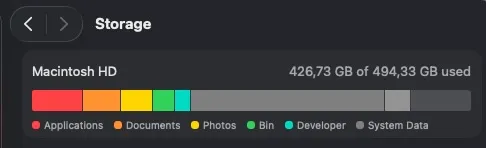
And there it is. That colored bar with one huge gray block, no explanation, called System Data, taking up 148 GB.
Yes, 148 GB.
Of something Apple won’t tell you what it is.
Look, everybody’s first reaction is the same: search Google, land on a 2019 forum thread where somebody recommends deleting a folder with sudo rm -rf, and run it at eleven at night without really knowing what they’re doing.
No, don’t do that.
Let me tell you what’s actually in there. Yes, the truth.
“System Data” isn’t a folder. It’s a junk drawer
And this is the most important thing to understand before you delete anything: Apple dumps into that gray block everything it doesn’t know how to classify as Applications, Photos, Messages, or Documents.
It used to be called “Other.” They changed the name, not the contents.
Here’s what’s usually inside:
- Local Time Machine snapshots. Copies on your own drive. They can run to tens of GB.
- Backups of your iPhone and your iPad. Between 10 and 100 GB each. And it keeps several.
- App caches. Spotify, Chrome, Slack, Figma. Each one with its own little folder in
~/Library/Caches. - Leftovers from apps you deleted two years ago. You dragged the app to the Trash. Its 4 GB folder in
Application Supportis still there. Say hi. - Developer stuff. If you have Xcode installed,
DerivedDataand the simulators are easily 100 GB. No exaggeration. - Docker virtual machines. A single 60 GB
Docker.rawfile is perfectly normal. - “Purgeable” space. Files macOS will only delete when it needs the room. They’re counted and they’re not there.
- Installers. All those
.dmgand.pkgfiles in your Downloads folder that you already used and never GOT AROUND TO DELETING..
Notice one detail: almost nothing on that list is “the system.”
It’s your digital life piled up over four years.
Why deleting files doesn’t free up space
This is the point where people lose their minds.
You delete 20 GB. You empty the Trash. You check the storage bar.And it’s exactly the same.
Two things are going on.
The first one: local Time Machine snapshots still hold a reference to what you just deleted, so the space isn’t freed until the snapshot expires.
The second one: macOS treats part of that space as purgeable and is in no hurry to give it back to you until it needs it.
Restart your Mac and look again. A lot of the time, that’s all the magic there was.
What you can delete without regretting it
In order of “most GB for the least risk”:
- Old iOS backups. They live in
~/Library/Application Support/MobileSync/Backup. If your iPhone backs up to iCloud, that 2023 backup of a phone you don’t even own anymore is no use to anybody. It is, by a wide margin, the most profitable delete there is. - Local Time Machine snapshots. In Terminal,
tmutil listlocalsnapshots /lists them out. They expire on their own, but you can speed that up. And if you don’t use Terminal, turning low disk space mode on and off again shakes them loose too. - Installers. Downloads. Sort by size. Any
.dmgfor an app that’s already installed is worth nothing. You can download it again in two minutes. - Xcode’s
DerivedData. It regenerates. Always. Delete the whole thing without thinking twice. - Caches from specific apps. In
~/Library/Caches, folder by folder, with the app closed. They regenerate. The only thing you lose is a slightly slower launch the first time. - Leftovers from apps that don’t exist anymore. This is where the hidden money is. Nobody goes looking for them because nobody knows what they’re called.
And now the part nobody tells you
Don’t touch /System. Don’t touch /Library at the root level. Don’t disable SIP because a YouTube video told you that’s how you see “the real files.”
And above all: don’t go deleting a folder you can’t name.
If you don’t know what app created something, don’t delete it. Move it to the Desktop, use your Mac for a week, and if nothing broke, then delete it. That’s the boring method and it works every time.
The real problem: it’s not deleting, it’s seeing
And this is what I’ve been thinking about ever since I started building Hootara.
Nobody has a deleting problem. Normally, everybody knows how to drag things to the Trash.
What nobody has is a map.
Apple’s colored bar tells you there are 148 GB of something. It doesn’t tell you where. And a list of folders sorted by size isn’t much help either, because to get to the fat file you have to open fourteen levels by hand.
That’s why Hootara shows your disk as a treemap: every file and every folder is a rectangle, and the size of the rectangle is the real size on disk. That 60 GB block of
Docker can’t hide from you. It takes up 60 GB of screen. You see it in the first second, without opening anything.
And for app leftovers there’s Ghost Hunter: you drag an app in and it searches, by its bundle identifier and by its name, for everything it left scattered across Application Support, Caches, Containers, Group Containers, Preferences, Logs, HTTPStorages, LaunchAgents, Saved Application State, WebKit, .config and the dotfiles in your home folder. It lists it all with its size and you decide.
One honest heads-up, because I’d rather tell you myself before you find out on your own: Hootara is on the Mac App Store, and that means sandbox. The first time, it’s going to ask you to grant access to your home folder with a system panel. Without that permission it can’t read ~/Library, because macOS won’t let it. And it doesn’t touch /System under torture, nor should any app.
What you see is yours. What gets deleted, you choose.
That’s all.